Enterprise Manager sub-type operation
Theme: Configure | Audience: Automation Engineer
What is it?
The Enterprise Manager sub-type provides a Windows job sub-type form for defining Azure VM jobs within OpCon's Enterprise Manager interface. It simplifies the process of building the command-line arguments required to run each connector task.
- Use this sub-type when your OpCon environment uses Enterprise Manager and you want a guided form for defining Azure VM job definitions.
- Use this sub-type when you need to manage Azure virtual machines — create, delete, start, stop, deallocate, restart, or list — as automated steps in an OpCon schedule.
Prerequisites
Before defining Azure VM jobs, confirm the following:
- The Azure VM Connector is installed on a Windows agent. See Installation.
- The
AzureVmPathglobal property is created and contains the connector installation directory. - The global properties
AZURE_WINDOWS_SERVERS,AZURE_LINUX_SERVERS, andAZURE_SERVER_SIZESare created and populated with valid values. These properties populate the lists offered in the sub-type form.
The three global properties are defined as follows:
| Property | Description |
|---|---|
AZURE_WINDOWS_SERVERS | Comma-separated list of Windows VM image names (double quotes required around each value) |
AZURE_LINUX_SERVERS | Comma-separated list of Linux VM image names (double quotes required around each value) |
AZURE_SERVER_SIZES | Comma-separated list of VM size names (double quotes required around each value) |
AzureVM job sub-type
The AzureVM connector provides a Windows job sub-type that simplifies job definitions in OpCon.
To define an Azure VM job in Enterprise Manager, complete the following steps:
- Create or open a Windows job in Enterprise Manager.
- From the Job Sub-Type list, select Azure VM.
- From the Task list, select the task to perform.
- Enter the required field values for the selected task. Only fields applicable to the selected task are enabled.
- Select Save.
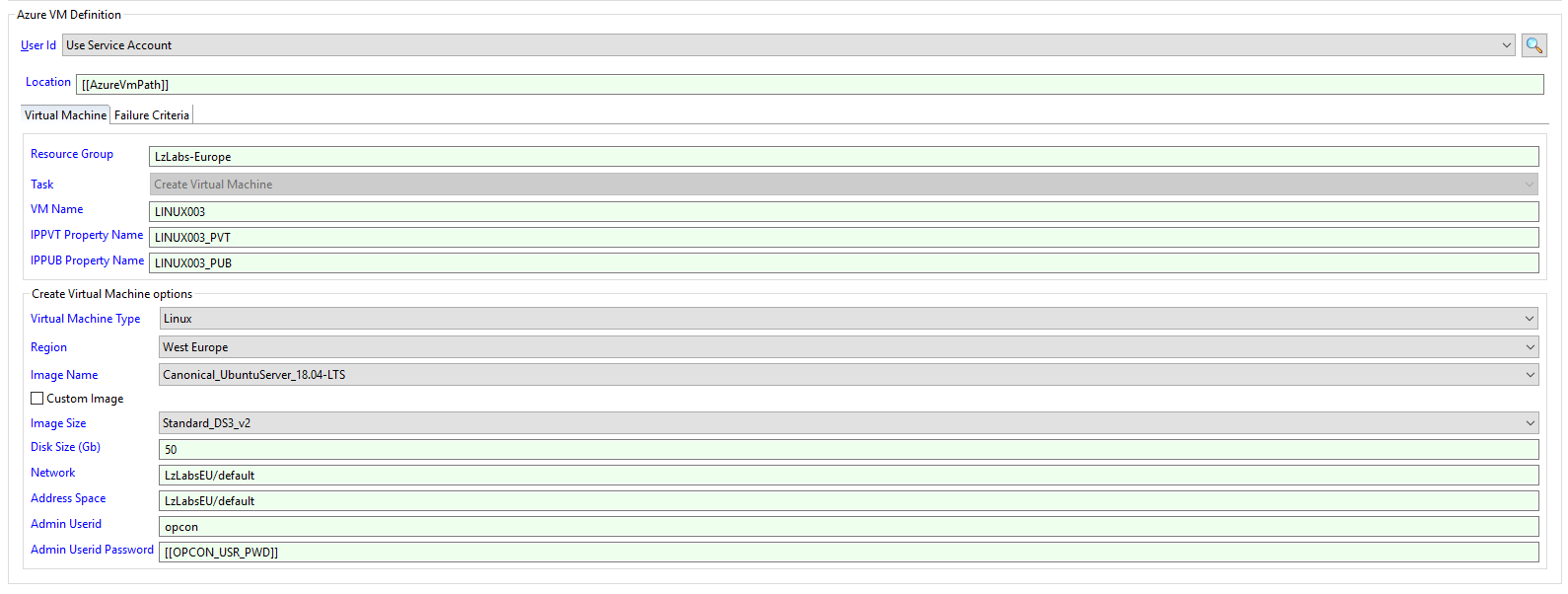
Once a task has been saved, the task type cannot be changed.
When creating a virtual machine, complete the following fields:
- From the Virtual Machine Type list, select Windows or Linux. The Image Name list updates to show images for the selected type.
- From the Region list, select the target Azure region.
- From the Image Name list, select the image to use. To use a custom image, select the Custom Image option. When using a custom image, a disk size is not required.
- From the Image Size list, select the VM size. For custom images, the size must match the size used when the image was created.
- In the Disk Size (Gb) field, enter a disk size in gigabytes. This field is required for non-custom images.
- In the Network and Address Space fields, enter the virtual network and subnet. To add the VM to an existing network, enter the existing network name.
- In the Admin Userid field, enter an administrator user name following the naming requirements for your VM type.
- In the Admin Userid Password field, enter the administrator password. Encrypted global properties can be used to conceal the password value.
When the virtual machine is a Windows machine being added to an existing network, the connector creates the machine but then reports the job as failed and returns 1. The machine exists in Azure, and neither IP address property is set.
Check the resource group in Azure before rerunning the job. If the machine is there, delete it first, or the rerun creates a second one.
AzureVM arguments
The AzureVM connector uses command-line arguments to define tasks. The sub-type form generates these arguments automatically when a job is saved.
Global arguments
The following arguments apply to all tasks:
| Argument | Description |
|---|---|
-rg | (Required) The resource group associated with the Azure request |
-t | (Required) The task to perform |
Create virtual machine
Creates a new virtual machine in the associated resource group.
| Argument | Description |
|---|---|
-t | Value: create |
-vm | (Required) The name of the virtual machine to create |
-ippvt | (Optional) The global property name to store the private IP address of the new VM |
-ippub | (Optional) The global property name to store the public IP address of the new VM |
-r | (Required) The Azure region where the VM will be created |
-at | (Required) The attributes used to create the VM, as a single comma-separated string. Refer to Attribute string fields |
-ci | (Optional) Include this flag if the image is a custom image |
Example:
AzureVM.exe -rg MY_RESOURCEGROUP -t create -vm MY_VMACHINE -ippvt MY_VMACHINE_PVT -ippub MY_VMACHINE_PUB -at "linux,MY_VMACHINE,Canonical_UbuntuServer_18.04-LTS,Standard_DS3_v2,50,myadmin,<SmaEncrypt>ENCRYPTED_PASSWORD</SmaEncrypt>,my-vnet/default,my-vnet/default,"
Attribute string fields
The sub-type form builds the -at value from the fields you complete, so it normally needs no editing. The fields are positional, in this order:
| Position | Field | Description |
|---|---|---|
| 1 | Virtual machine type | windows or linux |
| 2 | Machine name | The name of the virtual machine to create |
| 3 | Image name | The image, as publisher_offer_sku |
| 4 | Image size | The VM size, such as Standard_DS3_v2 |
| 5 | Disk size | The data disk size in gigabytes. A single space when no disk size applies, such as for a custom image |
| 6 | Admin user | The administrator user name |
| 7 | Admin password | The administrator password |
| 8 | Network | The virtual network, or new to create one |
| 9 | Address space | The subnet address space, or the existing subnet name |
A generated command line contains the administrator password in the seventh field of the -at value. Remove it before pasting a command line into a ticket, an email or a chat message.
When no disk size applies, the field must contain a single space rather than being empty. The sub-type form does this for you; an empty field causes the connector to fail while reading the value.
Delete virtual machine
Removes a virtual machine from the resource group.
| Argument | Description |
|---|---|
-t | Value: delete |
-vm | (Required) The name of the virtual machine to delete |
Example:
AzureVM.exe -rg MY_RESOURCEGROUP -t delete -vm MY_VMACHINE
List virtual machines
Returns status information for all virtual machines in the resource group.
| Argument | Description |
|---|---|
-t | Value: list |
Example:
AzureVM.exe -rg MY_RESOURCEGROUP -t list
Sample output:
------------------------------------------------------------------------------------------------------------------
List of virtual machines in resource Group  MY_RESOURCEGROUP
------------------------------------------------------------------------------------------------------------------
Virtual Machine Name     Region              Current State                 IP Private     IP Public      OS Type
------------------------------------------------------------------------------------------------------------------
LINUX001                 West Europe         PowerState/running            10.0.0.11      203.0.113.11   LINUX
LINUX002                 West Europe         PowerState/running            10.0.0.12      203.0.113.12   LINUX
LINUX003                 West Europe         PowerState/running            10.0.0.13      203.0.113.13   LINUX
WINSRV01                 West Europe         PowerState/running            10.0.0.14      203.0.113.14   WINDOWS
LINUX004                 West Europe         PowerState/stopped            10.0.0.15      N/A            LINUX
------------------------------------------------------------------------------------------------------------------
PowerOff virtual machine
Powers off a virtual machine. The VM is stopped but resources remain allocated.
| Argument | Description |
|---|---|
-t | Value: poweroff |
-vm | (Required) The name of the virtual machine to power off |
Example:
AzureVM.exe -rg MY_RESOURCEGROUP -t poweroff -vm MY_VMACHINE
Deallocate virtual machine
Stops a virtual machine and releases its compute resources. Unlike PowerOff, Azure stops charging for the compute resources once the machine is deallocated.
| Argument | Description |
|---|---|
-t | Value: deallocate |
-vm | (Required) The name of the virtual machine to deallocate |
Example:
AzureVM.exe -rg MY_RESOURCEGROUP -t deallocate -vm MY_VMACHINE
Restart virtual machine
Restarts a virtual machine. Optionally stores the IP addresses after restart.
| Argument | Description |
|---|---|
-t | Value: restart |
-vm | (Required) The name of the virtual machine to restart |
-ippvt | (Optional) The global property name to store the private IP address after restart |
-ippub | (Optional) The global property name to store the public IP address after restart |
Example:
AzureVM.exe -rg MY_RESOURCEGROUP -t restart -vm MY_VMACHINE -ippvt MY_VMACHINE_PVT -ippub MY_VMACHINE_PUB
Start virtual machine
Starts a stopped virtual machine. Optionally stores the IP addresses after startup.
| Argument | Description |
|---|---|
-t | Value: start |
-vm | (Required) The name of the virtual machine to start |
-ippvt | (Optional) The global property name to store the private IP address after startup |
-ippub | (Optional) The global property name to store the public IP address after startup |
Example:
AzureVM.exe -rg MY_RESOURCEGROUP -t start -vm MY_VMACHINE -ippvt MY_VMACHINE_PVT -ippub MY_VMACHINE_PUB
Exit codes
| Code | Meaning |
|---|---|
0 | Success — the job completed processing |
1 | Failure — an exception occurred during job processing |
99 | A credential value in Connector.config is missing |
401 | A credential value in Connector.config is present but empty |
To detect a failure, set the Failure Criteria for the job to NE (Not Equal) to 0, which catches all three failure codes.
99 and 401 point at the configuration file, not at AzureBoth codes mean the connector could not read an encoded value from Connector.config. Despite its resemblance to an HTTP status, 401 is not a rejection by Azure or by the OpCon API.
FAQs
What is the difference between PowerOff and Delete? PowerOff stops the VM and keeps it in a stopped state while Azure continues to reserve the allocated resources. Delete removes the VM and its resources from the resource group entirely.
Can I store the VM's IP address in an OpCon global property after a start or restart?
Yes. Use the -ippvt argument to store the private IP address and -ippub to store the public IP address. Provide the name of the global property (not the property value) as the argument value.
Can I use encrypted global properties for the Admin Userid Password? Yes. Encrypted global properties can be referenced in the Admin Userid Password field to avoid displaying the password in plaintext in the job definition.
Why does saving a job lock the task type? The task type determines which fields are required and which arguments are generated. Changing the task type after saving would invalidate the saved field values.
Glossary
Resource group — An Azure container that holds related resources such as virtual machines. All connector tasks target a single resource group per job.
Sub-type — A guided form in Enterprise Manager that simplifies job definition for a specific connector. The Azure VM sub-type generates the required command-line arguments for the selected task.
Global property — A named value stored in OpCon that can be referenced in job definitions. Used by the Azure VM Connector to provide image lists, size lists, and to store VM IP addresses after job completion.
PowerState/running — The Azure VM status indicator that confirms the VM is powered on and operational, as shown in the list task output.